How to Reactivate Pearson MyFoundationsLab Account
How to Reactivate Pearson MyFoundationsLab Account
The Pearson MyFoundations Lab for Freshman Composition is an online study tool that provides supplementary content for Freshman Composition I & II and allows for self-paced learning.
Before you can begin accessing your Pearson MyFoundationsLab, you may need to reactivate your account for a new semester. Why?
NOTE: For Freshman Composition students WITH a Pearson MyFoundationsLab account.
I don't have a Pearson MyFoundationsLab account, see How to Create an Account for the Pearson MyFoundationsLab.
Written Tutorial
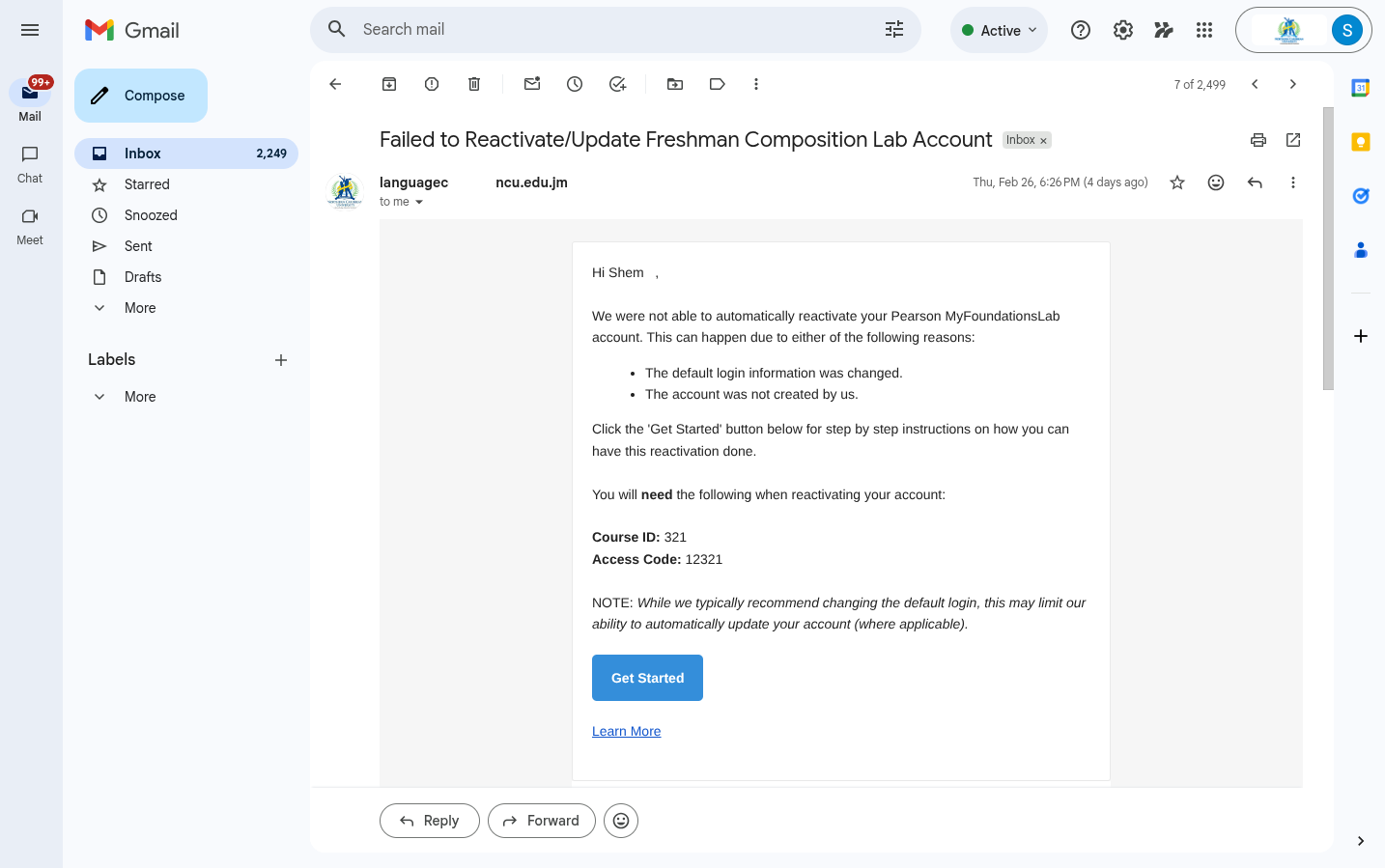
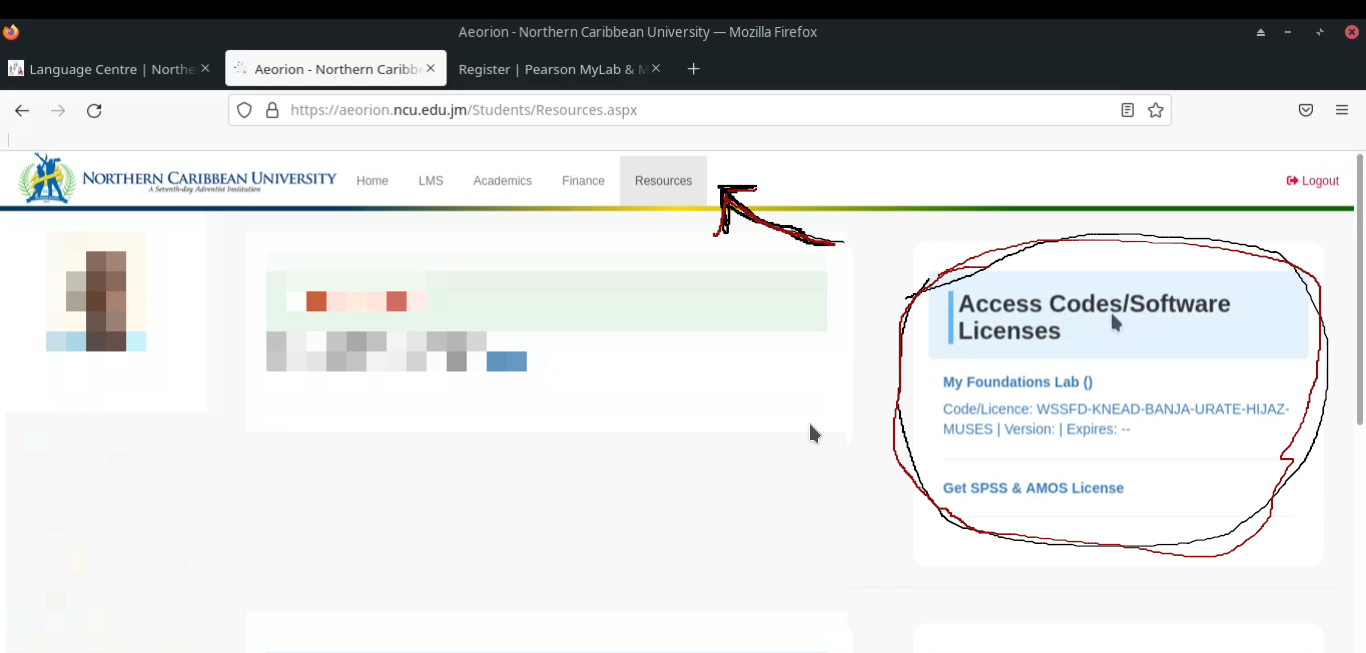
Before beginning registration, ensure that you have an access code which you can find in your email inbox or under the resources tab of Aeorion > Access Codes/Software License. If you do not have one, please contact support.
Example Access Code: WSSFD-STOUP-TONDO-GRABS-HAMZA-WIRES
~ Or ~
Next, find your Course ID.
This can be found in the Lab Email Notice, you may also ask your instructor or find the name of your instructor with the correct section in either of the tables provided here (click the copy icon to copy to clipboard). The Course ID is used to identify the respective instructors along with their individual sections.
Example Course ID: XL56-41AI-4023-1OM2
Once you have found both, click the following link to "Start Reactivation" process.
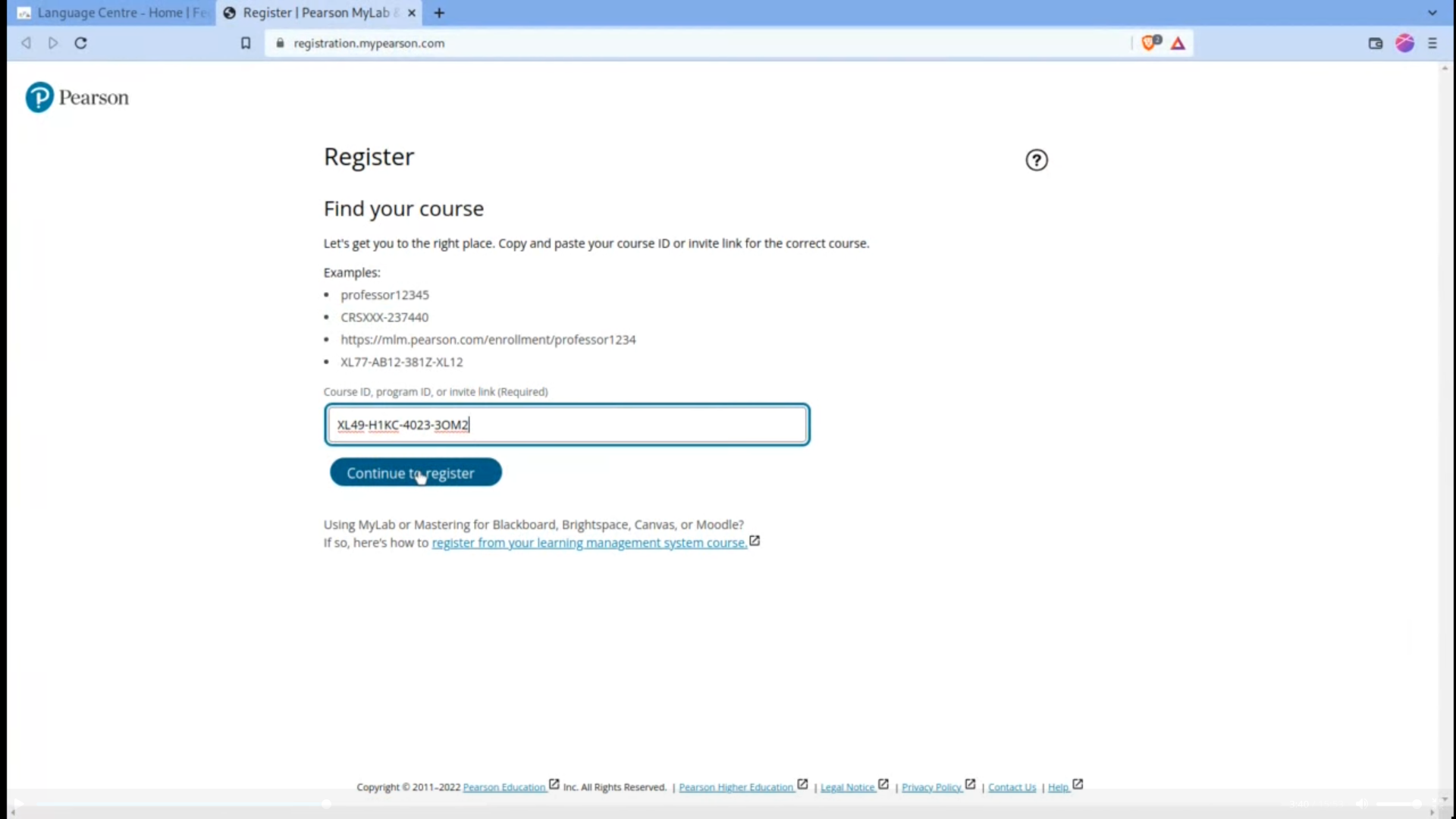
The first piece of information you will be required to input is your Course ID. Paste
it into the required input field. Then click “continue to register”.
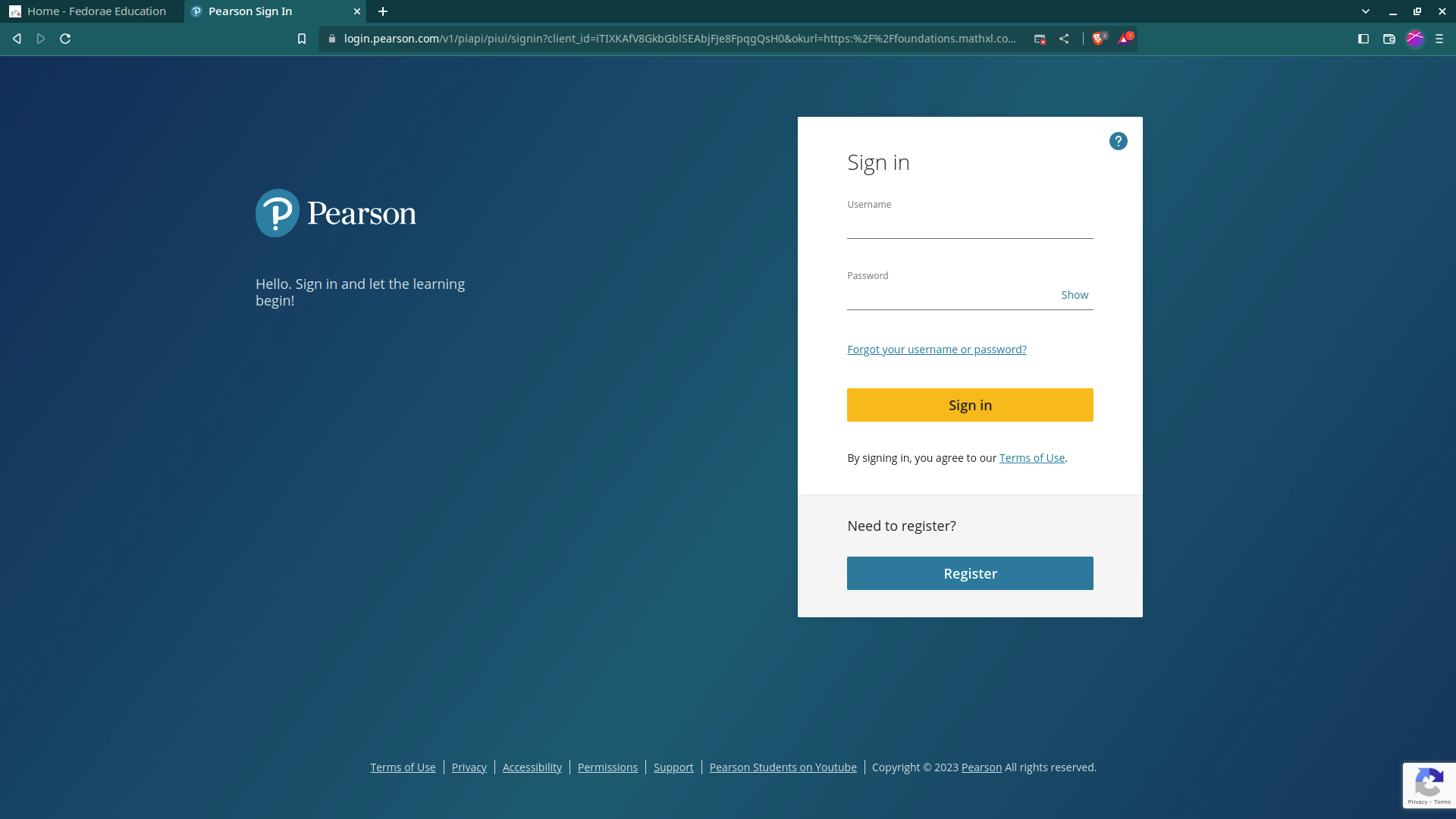
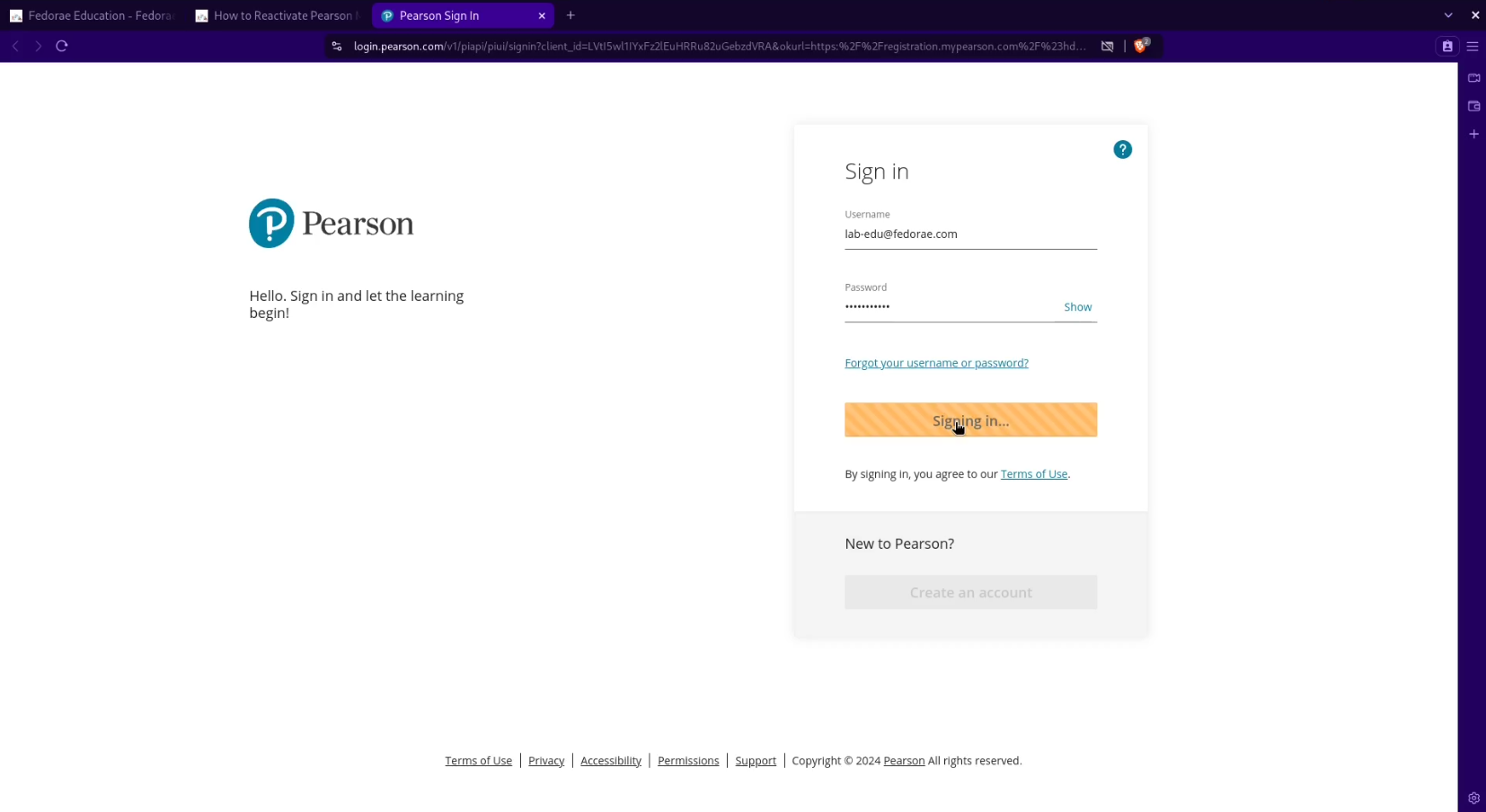
You should already have an account, therefore you would enter your username & password to sign in at this step.
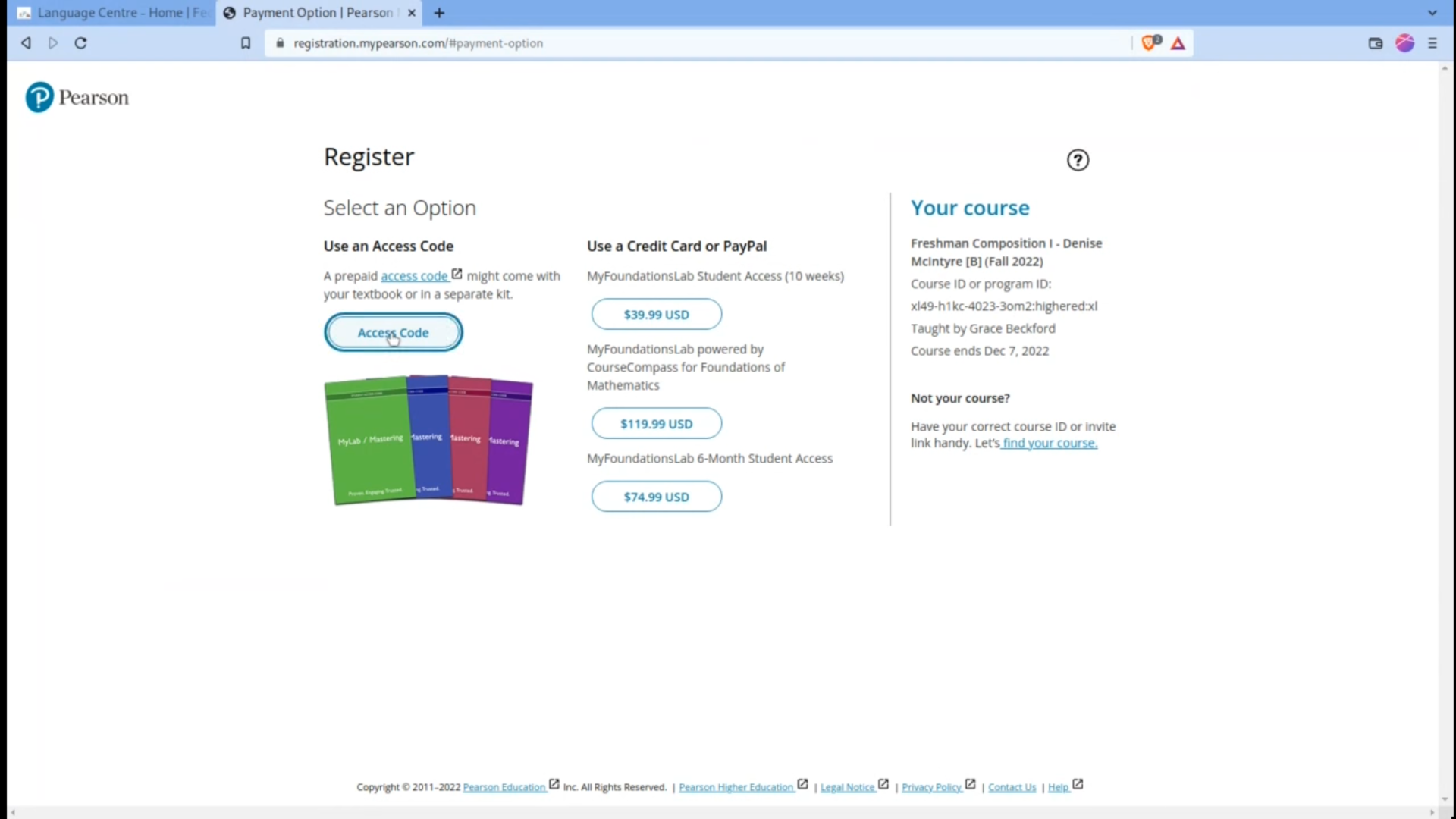
Next, a page named “Register” will come up. This is where you will need your access code. Click the first option/button that says, “Access code”.
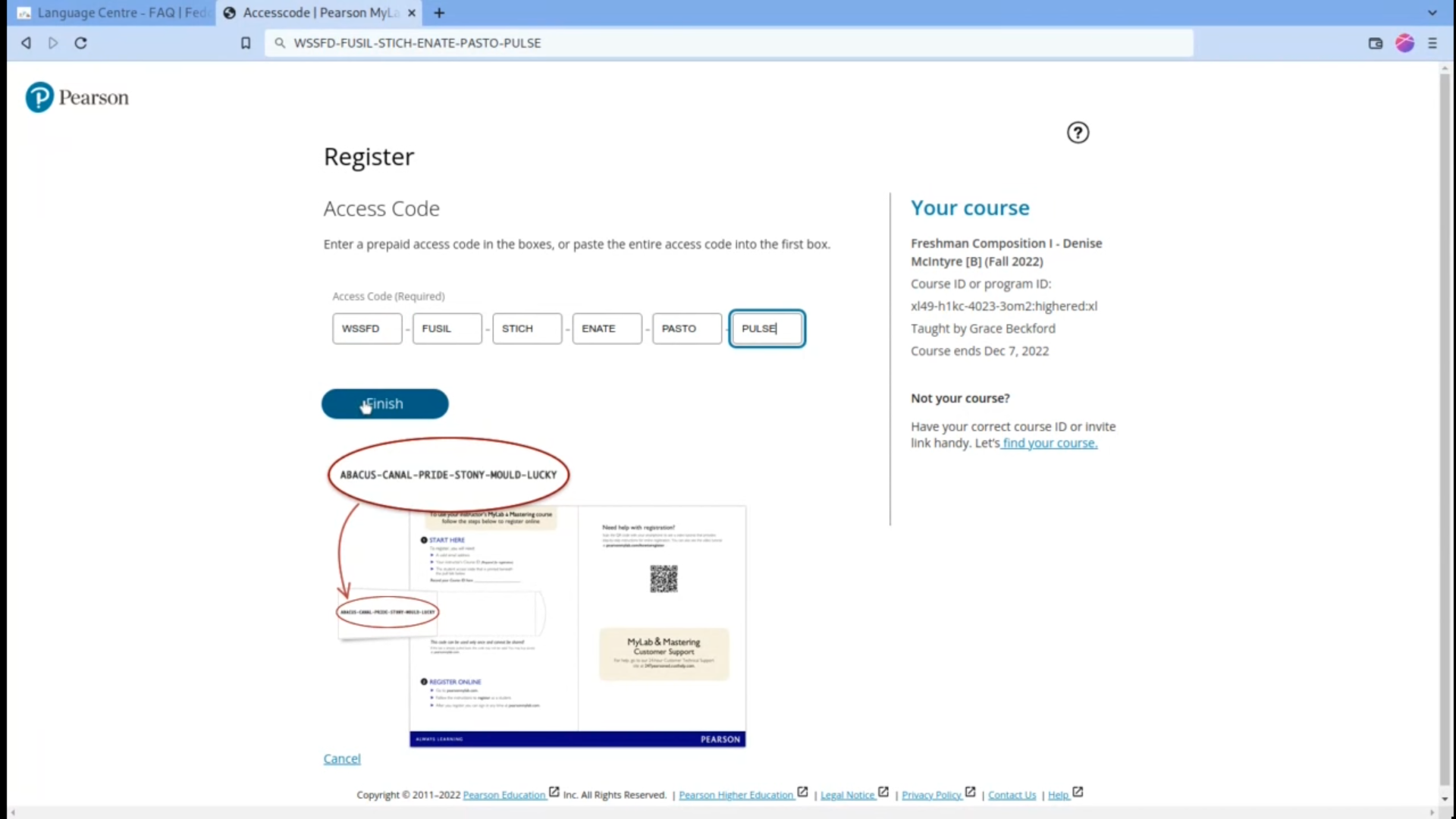
Now, paste your access code as seen on Aeorion into the first box, and it will spread accordingly. Then, click ‘finish’ which will take you to a page titled “You’re done!”
On this page you may review your registration details then click the button that says “Go to your courses” to continue.
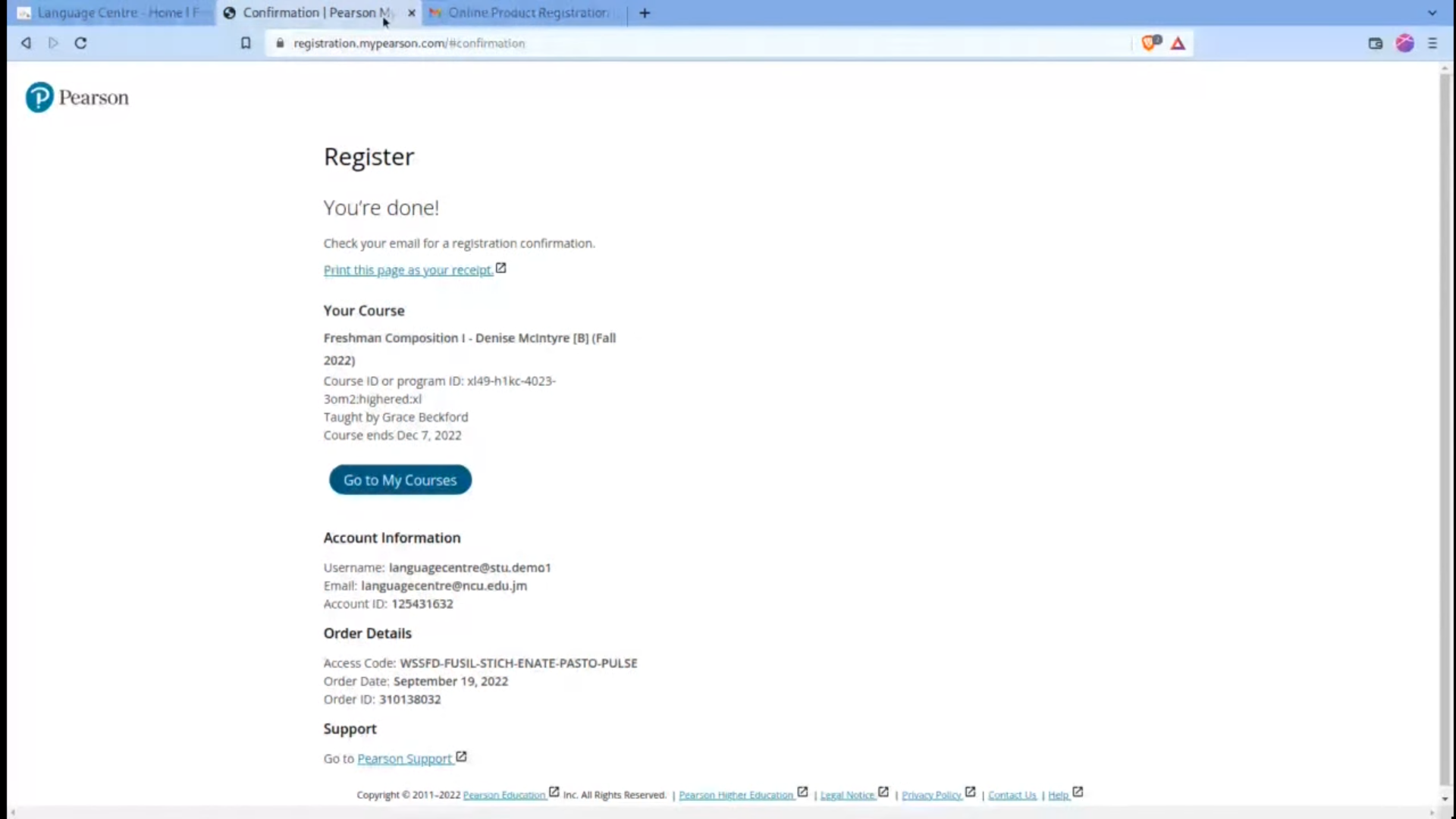
On the next page, you will be asked to enrol in a course. Simply enter the Course ID you used before. If you wish to copy and paste the code, ensure you click “switch to single box for pasting your Course ID”. Next, ensure you have chosen the right course and click enroll.
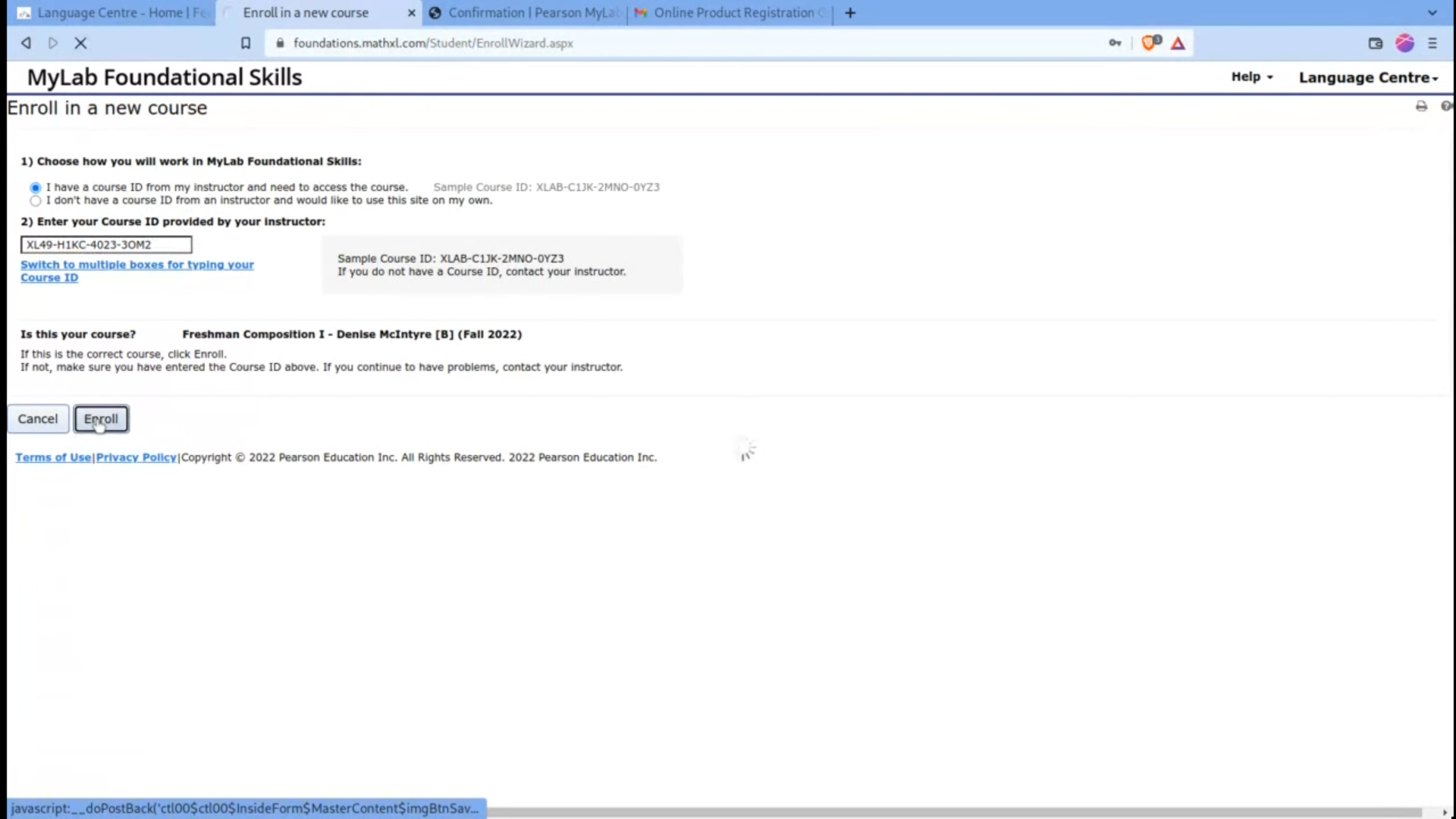
After this, confirm the enrolment and you would now have successfully completed registration and enrollment. You will also receive an email confirming your registration.
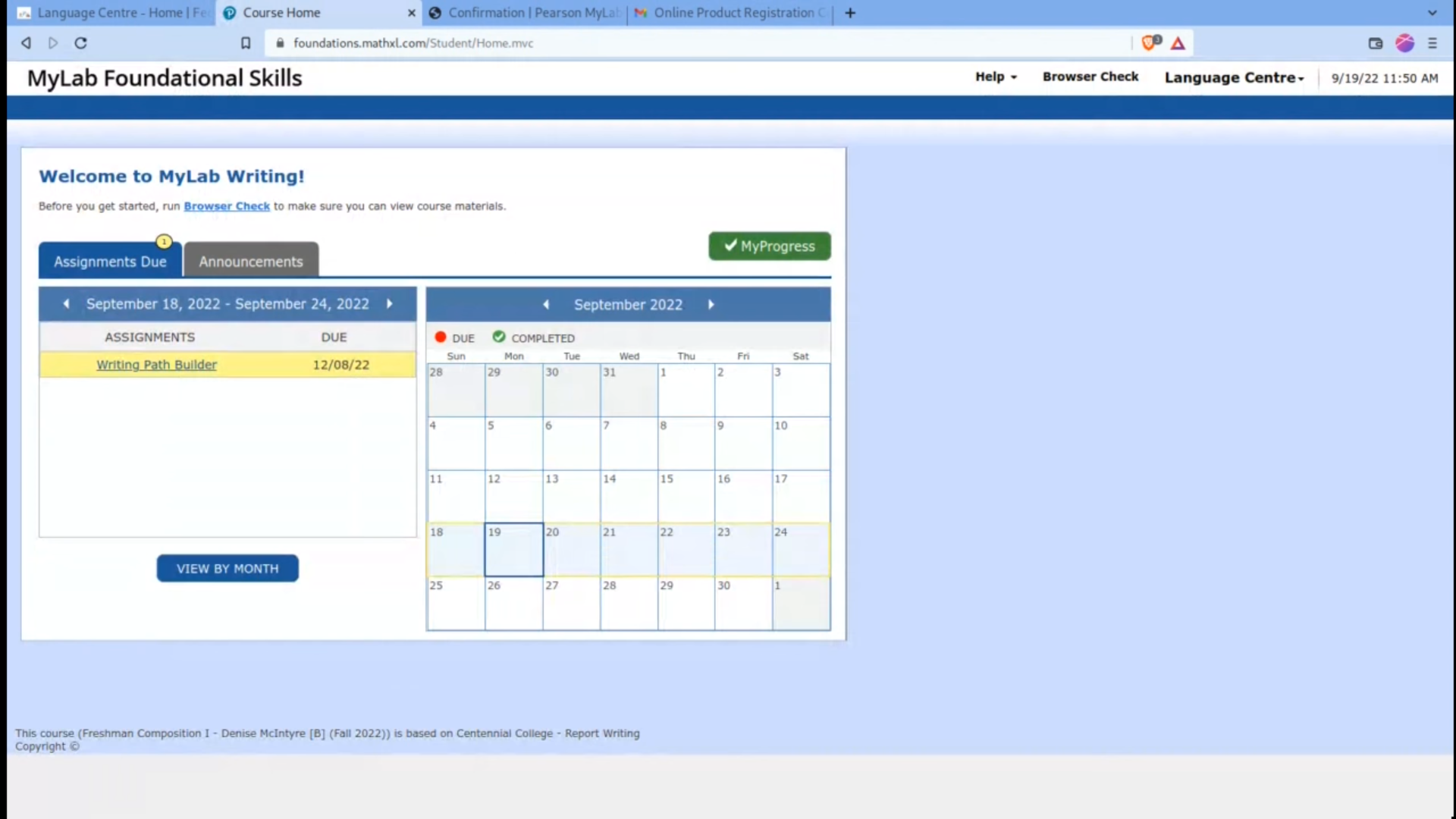
The final page you should see is the following: