
How to Access Pearson MyFoundationsLab
A step-by-step guide for students to log in, navigate the dashboard, and find their assigned Lab activities.
How to Access Your Lab Activities
Before you begin: Make sure you have your login credentials ready. These were sent to your email address by the Language Centre (Lab coordinator). If you haven't received them, check your spam folder, contact your instructor or contact the Language Centre.
What You'll Need
- ✅ A computer/laptop (recommended), tablet or smartphone with internet access
- ✅ Your login credentials (sent via email)
- ✅ A modern browser: Brave (recommended), Firefox, Safari or Chrome
- ✅ About 5 minutes to get set up
Step 1 — Go to the Lab Portal Website
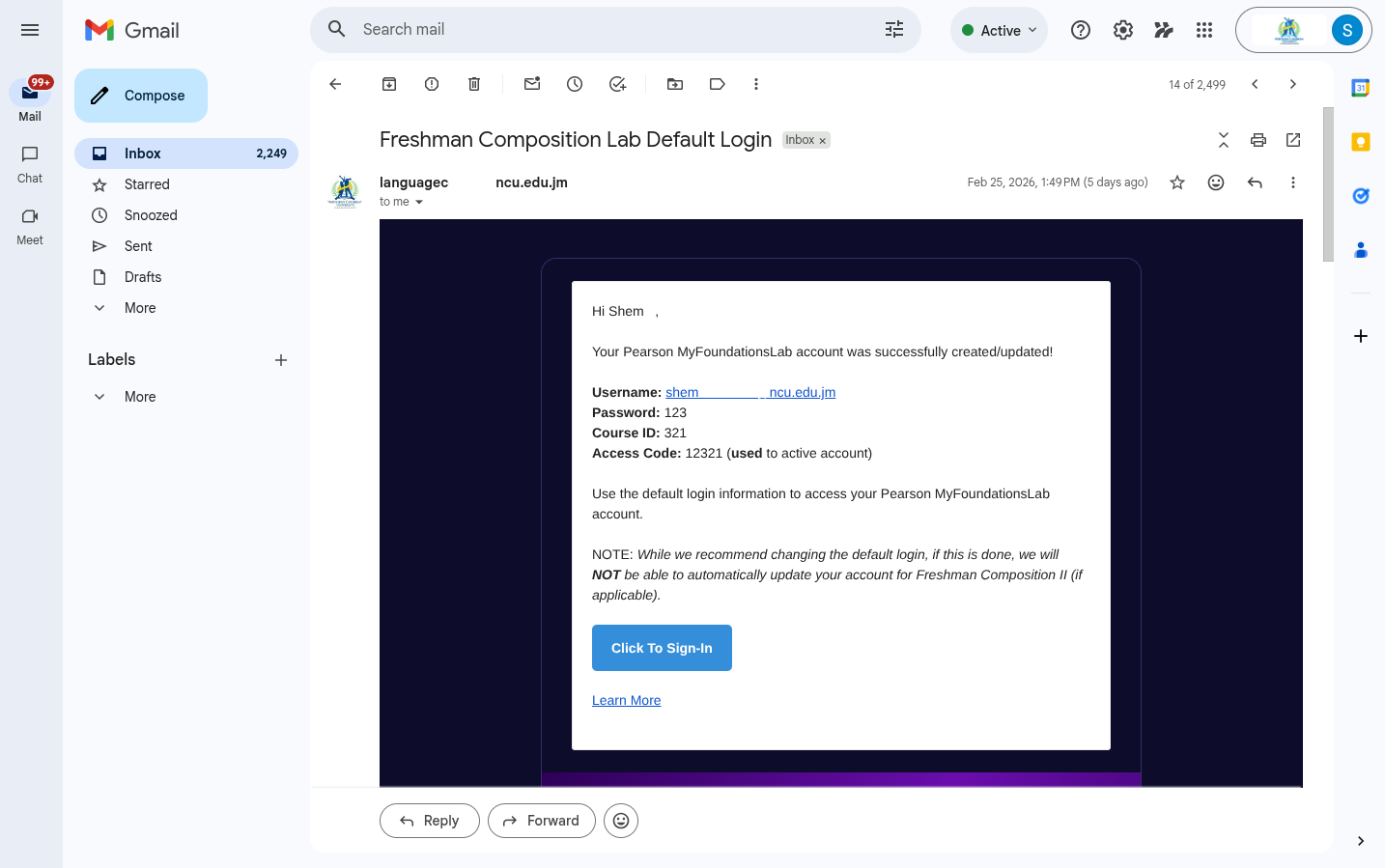
Use the button provided in the Lab notice email or click here.
💡 Tip: Bookmark this blog so you can return to it quickly for future reference.
Make sure to use the provided links from the Language Centre. Avoid clicking links from unknown sources — The Pearson platform is very large and is divided into different sections of which we do not use and this may cause confusion. Using the links on the Fedorae Education platform or provided by the Language Centre ensures consistency and reliable when you are accessing your Lab.
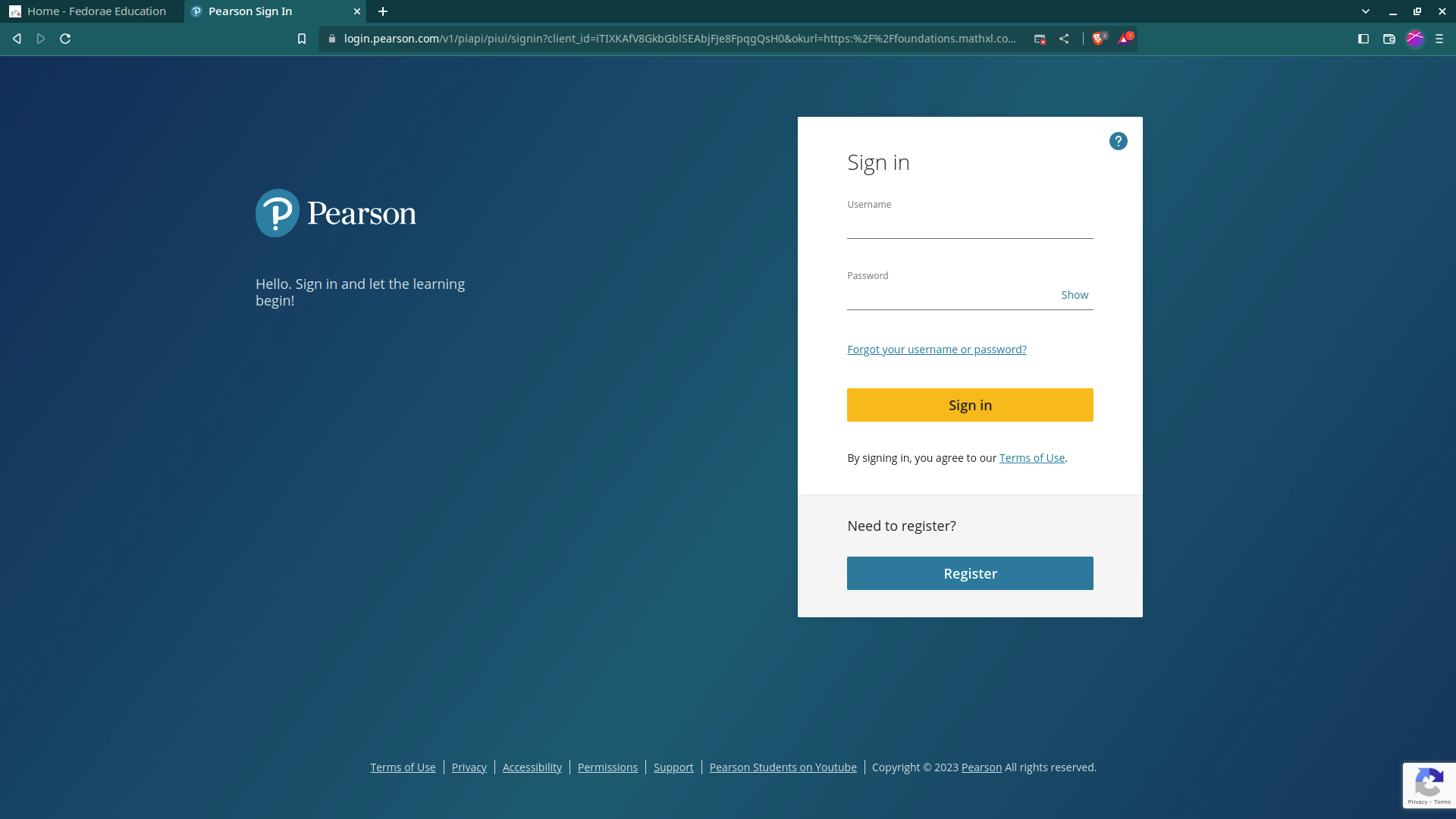
While there are a number of ways this can be done, the simplest and fastest approach is by clicking the "Click to Sign-In" button from the Lab Email Notice (as seen in the screenshot below) or by clicking the "DO LABS" button in the profile card. This will take you to the Pearson Sign In screen where you will enter your username (student email address*) and password.
Step 2 — Log In With Your Credentials
On the login page, you will see two fields:
- Username
- Password
Enter or copy & paste (recommended) the credentials exactly as they appear in your email. Passwords are case-sensitive, so double-check for capital letters or special characters.
Having trouble logging in?
- Make sure Caps Lock is not on.
- Copy and paste your password directly from the email to avoid typos.
- If you still can't log in, contact your instructor or the Language Centre.
Once you've entered your credentials, click the "Sign In" button.
Step 3 — Navigate Your Dashboard
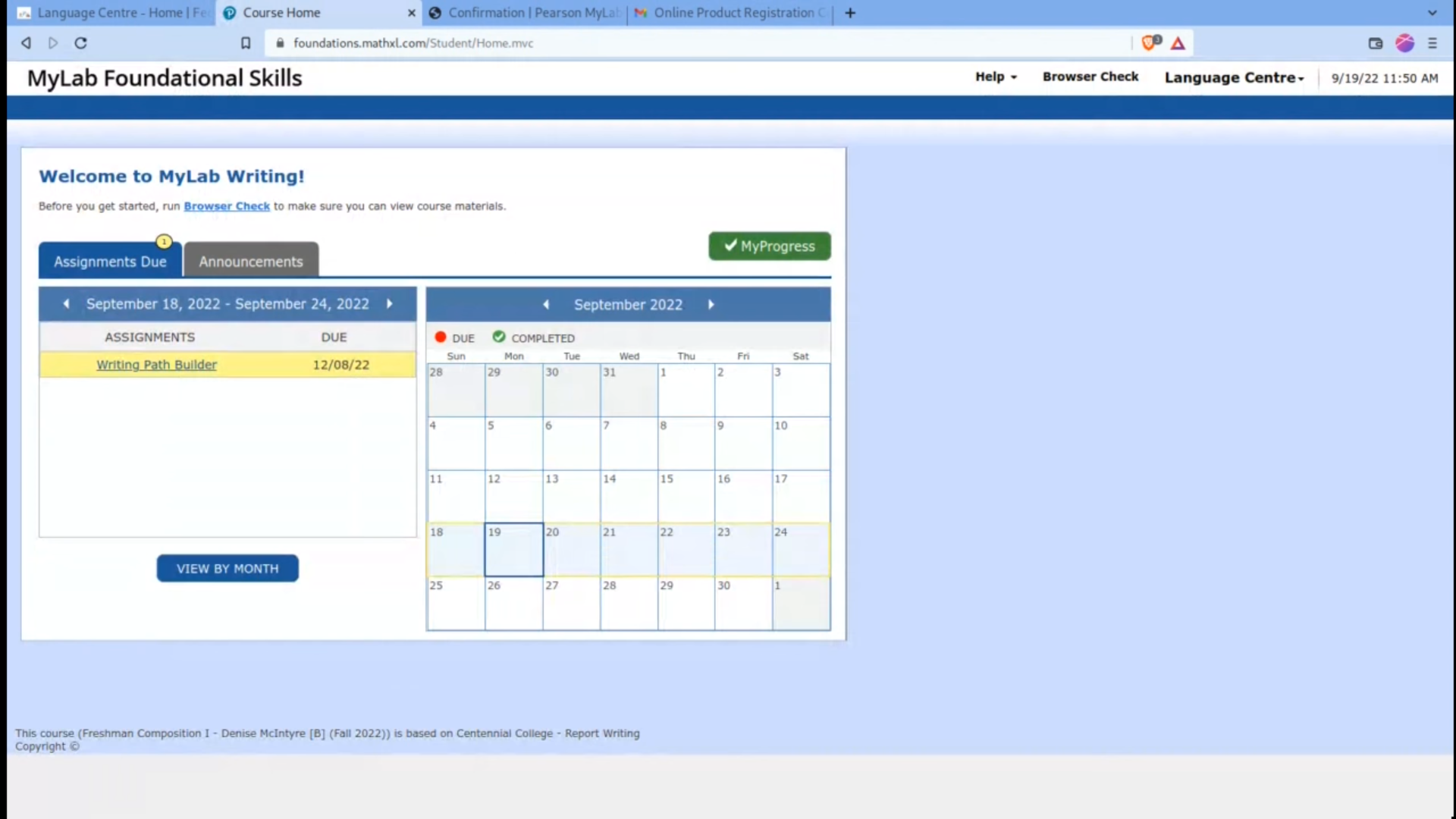
After a successful login, you will be automatically redirected to your Dashboard.
Your dashboard is divided into two main sections:
| Section | Location | What It Contains |
|---|---|---|
| Activity & Tables Area | Left side | Assignment tables |
| Calendar View | Right side | A monthly calendar of upcoming deadlines |
Take a moment to familiarize yourself with the layout. The calendar on the right gives you a bird's-eye view of your schedule, while the tables on the left contain the details you'll need day to day.
Step 4 — Find the "Assignments Due" Tab
In the left-hand section, you will see 2–3 tables, each organized under different tabs. Look for the tab labeled:
"Assignments Due"
Click on it to make sure you are viewing the correct table. This tab lists all upcoming and pending lab assignments tied to your account.
Note: You may also see tabs such as "Announcements" or "Learning Path".
Step 5 — Click "View My Month"
Once you're on the Assignments Due tab, look for the button:
📅 "View My Month"
Click this button. It will expand or switch your view to show a full list of all Lab activities assigned to you for the current month.
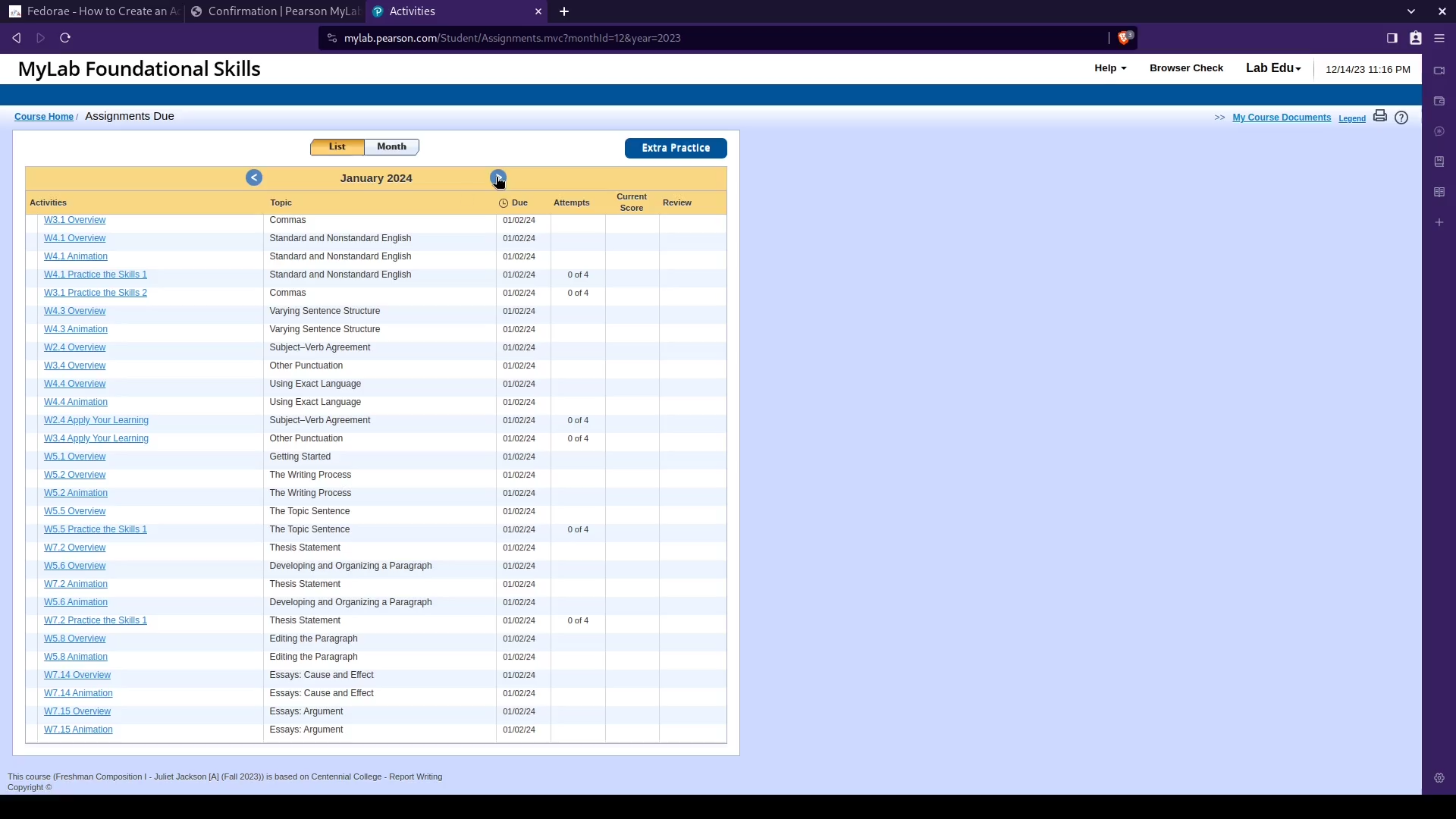
This is your primary workspace for tracking what needs to be done.
Step 6 — Navigate to the Correct Month (If Needed)
Only seeing "Path Builder"? or "You do not have any assignments due this week..." Don't worry — this is normal. It simply means your other Lab activities are scheduled for an upcoming month.
Note: The "Path Builder" is a required activity that MUST be completed in order to gain access to the rest of your assignments.
If you only see a single activity called "Path Builder" or "You do not have any assignments due this week..." in your list, your remaining labs are assigned to a future month.
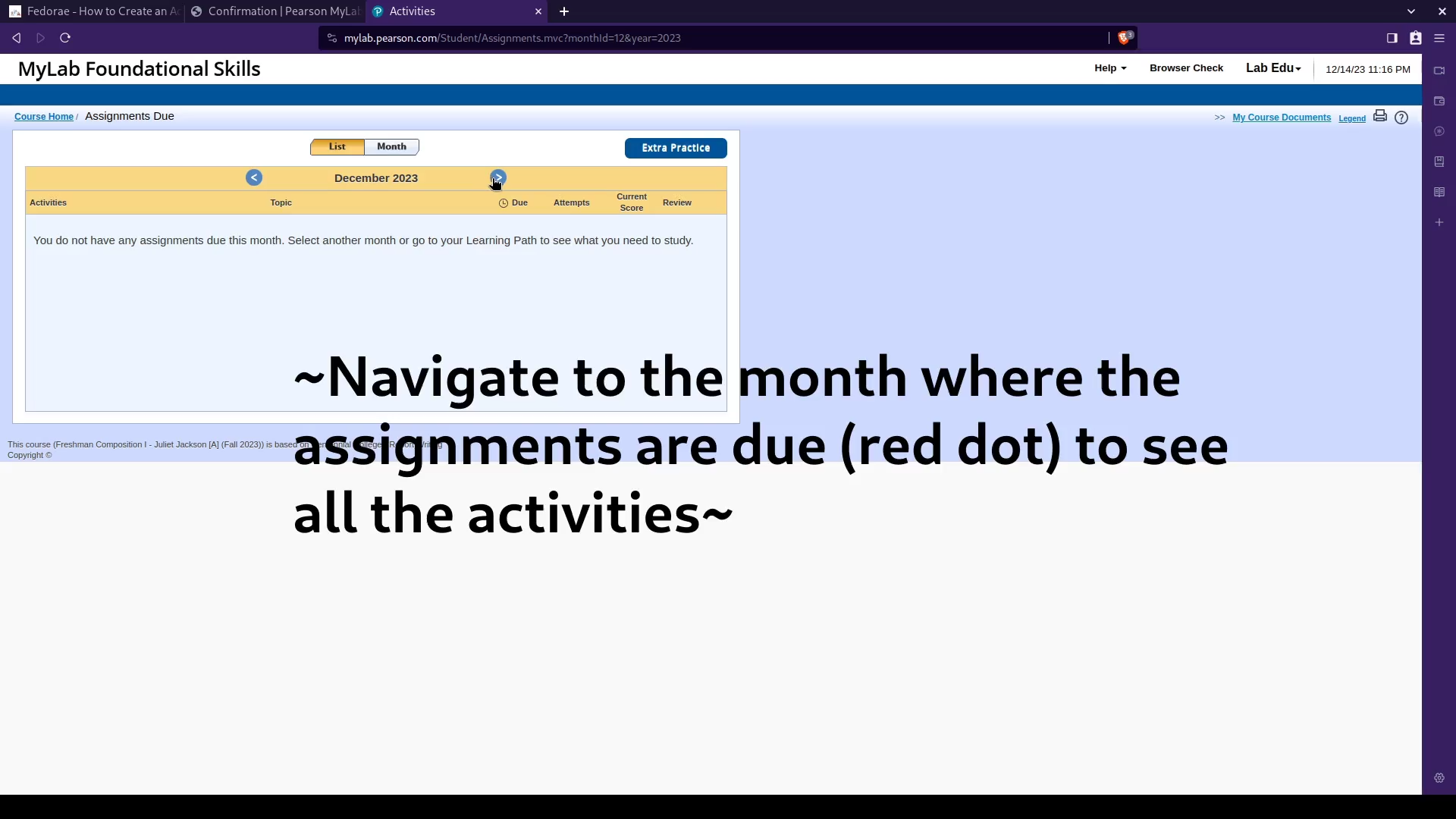
Here's what to do:
- Look for the right arrow ( › ) or forward navigation button near the top of the activity list or calendar.
- Click the right arrow to advance to the next month.
- Keep clicking until you reach the month when your Lab activities are due.
- Once you land on the correct month, you will see all the activities you need to complete listed clearly.
🗓 Pro Tip: Cross-reference the due dates with the calendar view on the right side of your dashboard to confirm you're looking at the right month.
Step 7 — Review Your Lab Activities
Now that you can see all your assigned activities, take a moment to:
- Read each activity name and description carefully.
- Note the due dates — all assignments usually have the same deadline.
- Note the number of attempts — some assignments may have mulitple attempts.
- Download or open any required materials linked within each activity.
You're all set! You now know how to access and navigate your Lab activities. Bookmark your dashboard and check back regularly to stay on top of deadlines.
Frequently Asked Questions
Visit: Pearson MyFoundationsLab Fundamentals
Quick Reference Summary
| Step | Action |
|---|---|
| 1 | Go to the lab portal website |
| 2 | Log in with your emailed credentials |
| 3 | Arrive at your Dashboard |
| 4 | Click the "Assignments Due" tab |
| 5 | Click "View My Month" |
| 6 | Use the right arrow to navigate to the correct month |
| 7 | Review and begin your Lab activities |
Need more help? Reach out to your instructor or the Language Centre.